
Guide · Windows 11 and 10
How to free up disk space on Windows 11 (and 10): 12 safe ways
A full C: drive slows updates, breaks installs and makes Windows sluggish. These twelve steps get space back safely, starting with the ones that free the most for the least risk. Every one works on Windows 11 and almost all of them on Windows 10.
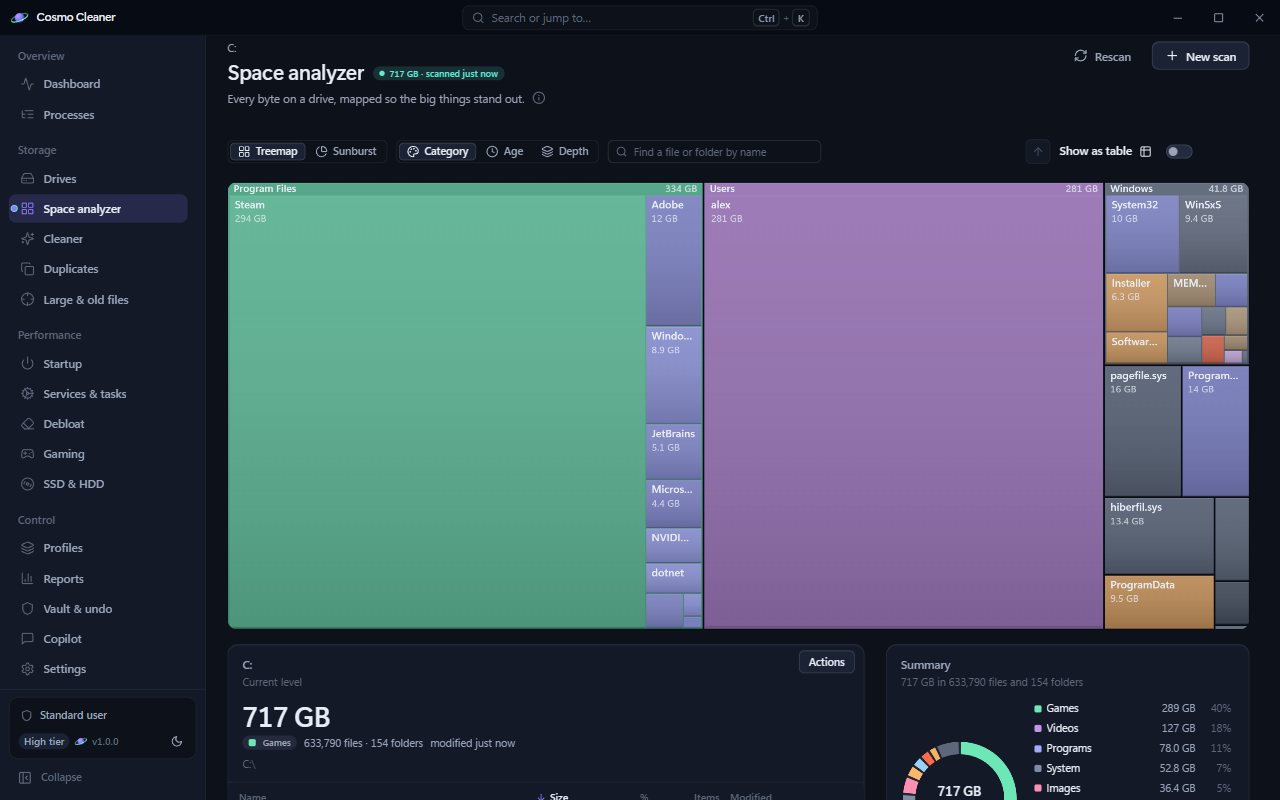
1. See what is using the space first
Open Settings > System > Storage. Windows lists the biggest categories on C: (apps, temporary files, documents, system) and Show more categories adds the rest. For a folder-by-folder picture, use a disk space analyzer: it draws the whole drive as a map so the one 40 GB folder you forgot about is obvious. Our guide What is taking up space on my PC? walks through both.
2. Empty the Recycle Bin
Deleted files still use space until the Recycle Bin is emptied. Right-click it on the desktop and choose Empty Recycle Bin. This one is permanent, so glance inside first.
3. Delete temporary files
Go to Settings > System > Storage > Temporary files, wait for the scan, tick what you want gone and choose Remove files. Untick Downloads unless you really mean it: it is your Downloads folder, not a cache. More detail in Is it safe to delete temp files?
4. Turn on Storage Sense
In Settings > System > Storage, switch on Storage Sense. It clears temporary files automatically and can empty the Recycle Bin and turn unused OneDrive files into online-only ones on a schedule you choose.
5. Run Disk Cleanup with system files
Press Win+R, type cleanmgr, pick C: and click Clean up system files. The second scan adds Windows Update Cleanup, delivery optimization files and old device driver packages, which are often several gigabytes on a PC that has been updated for a year or more.
6. Remove the previous Windows installation
After a feature update Windows keeps the old system in C:\Windows.old so you can roll back. It is commonly 10 to 30 GB. Once you are happy with the update, remove it in Settings > System > Storage > Temporary files > Previous Windows installation(s). Full walkthrough: How to delete Windows.old.
7. Shrink or turn off the hibernation file
C:\hiberfil.sys is sized at about 40% of your RAM by default: 12.8 GB on a 32 GB PC. On a desktop that never hibernates, powercfg /hibernate off in an administrator terminal removes it. See hiberfil.sys explained before you do, because it also turns off Fast Startup.
8. Clean up the component store (WinSxS)
Superseded update components pile up in C:\Windows\WinSxS. Never delete anything there by hand. Let Windows do it, in an administrator terminal:
DISM /Online /Cleanup-Image /StartComponentCleanup
It takes a few minutes, is safe, and typically frees one to several gigabytes.
9. Limit System Restore storage
Restore points live in shadow storage, which can grow to a large share of the drive. Search for Create a restore point, select C:, click Configure and lower Max Usage. Windows deletes the oldest points to fit, so keep at least a few gigabytes so a recent point survives.
10. Uninstall apps and games you no longer use
Settings > Apps > Installed apps, sort by size. Games are usually the biggest single items on a drive; launchers such as Steam can also move a game to another drive instead of uninstalling it.
11. Clear browser, shader and developer caches
Browsers, GPU drivers and developer tools (npm, NuGet, pip, Gradle, Docker) all keep caches that rebuild themselves. Clearing them is safe; the cost is a slower first run afterwards while the cache refills.
12. Move or offload personal files
Move videos, photos and old projects to another drive, or let OneDrive keep them online only: right-click a folder in the OneDrive folder and choose Free up space. The files stay visible and download when you open them.
What not to delete
- WinSxS, System32 and Windows\Installer by hand. Removing files there breaks updates, repairs and uninstallers. Use DISM and Disk Cleanup.
- pagefile.sys. Windows manages its size; turning it off can crash apps when memory runs short.
- System Volume Information. It holds your restore points; shrink it from System Protection instead.
- AppData wholesale. It contains app settings, saves and mail stores, not just caches.
Does freeing space make Windows faster?
Only up to a point. Windows needs free room for updates, the page file and temporary work; below roughly 10% free on an SSD, installs fail and performance suffers. Beyond that, more free space does not make a PC faster. What runs at sign-in usually matters more: see how to disable startup programs.
Old drivers can also take gigabytes; see how to remove old drivers from the driver store safely.
Questions
Why is my C: drive full?
Usually a mix of apps and games, Windows Update leftovers, a previous Windows installation, the hibernation file, restore points and caches. Settings > System > Storage or a disk space analyzer shows which one it is on your PC.
Is it safe to use Disk Cleanup?
Yes. Disk Cleanup only offers items Windows considers safe to remove. The one to think about is Previous Windows installation(s): once it is gone you cannot roll back that update.
How much free space should I keep on C:?
Keep at least 10 to 15% of the drive free, and more before a Windows feature update, which needs room to download and unpack.