
Guide · Windows 11 and 10
What is taking up space on my PC? How to find out on Windows
Your drive says it is nearly full, but the folders you can see do not add up. Here is how to find out where the space went, including the hidden system files that Explorer never shows you.
Start with Windows Storage settings
Open Settings > System > Storage. Windows groups C: into categories: installed apps, temporary files, documents, pictures, videos, system and reserved, and others. Click Show more categories to see all of them, then click any category to drill in. It is quick, but it will not show you individual folders outside your user profile.
Check the hidden system files
Several of the largest files on a Windows drive are hidden. Here is what they are and whether you can shrink them:
- hiberfil.sys: the hibernation file, about 40% of RAM by default. Can be shrunk or removed.
- pagefile.sys: virtual memory. Leave it to Windows.
- C:\Windows.old: the previous Windows installation after an update. Safe to remove once you are happy.
- C:\Windows\WinSxS: the component store. Looks huge because of hard links; clean it only with
DISM /Online /Cleanup-Image /StartComponentCleanup. - System Volume Information: restore points. Shrink from System Protection, not by deleting.
- Reserved storage: about 7 GB Windows keeps for updates. Normal, and it is given back as updates use it.
Use a disk space analyzer
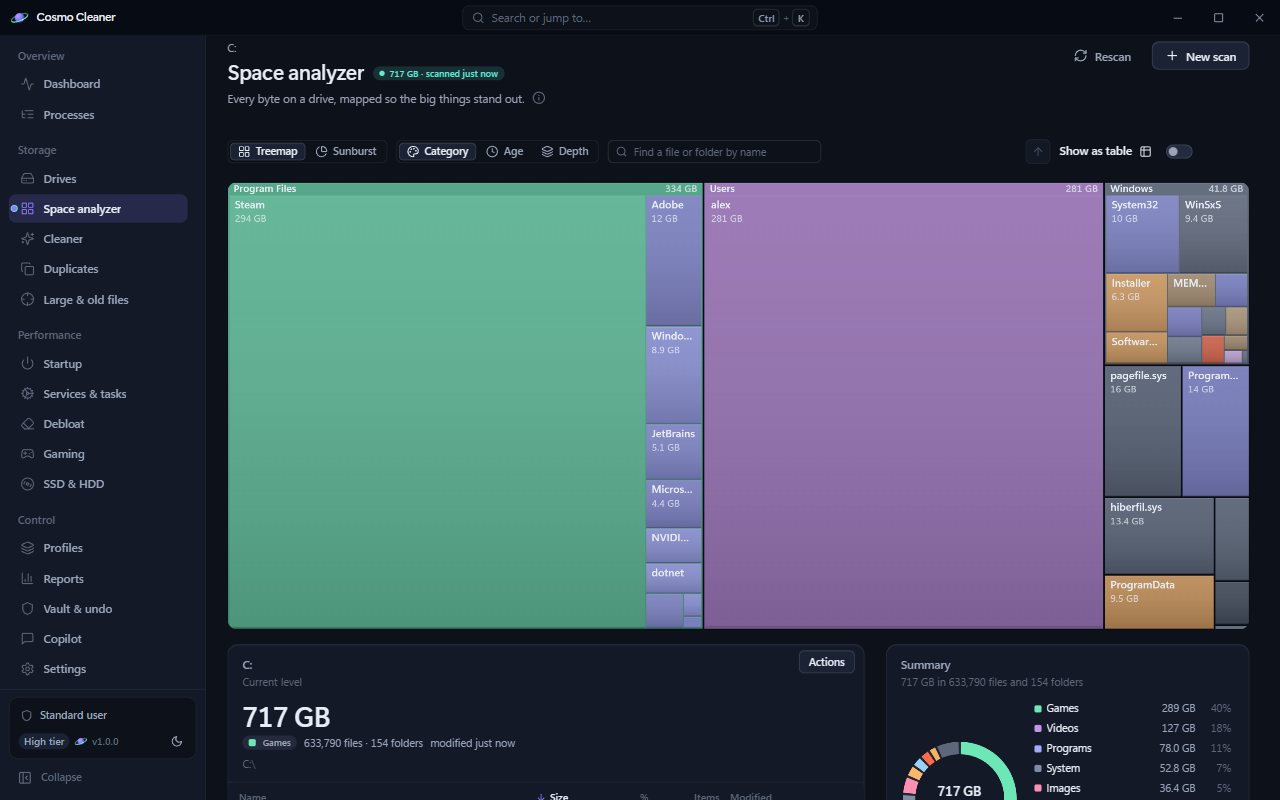
A disk space analyzer scans every folder on the drive and draws it as a map, usually a treemap, where each rectangle is a folder sized by its bytes. The folder eating your drive becomes the biggest block on screen, so you see the answer before you read a single number. That is faster than opening folder properties one at a time, and it finds things Storage settings lumps into "Other".
Cosmo Cleaner's space analyzer maps every drive in one scan (a real drive with 830,000 files took about two minutes) and offers four views of the same data: a treemap, a sunburst, a heatmap of what has not been touched in years, and a timeline of what arrived recently. Colors show categories such as games, video, photos, code and system.
The usual suspects
- Games: modern titles are 50 to 150 GB each.
- Video and phone backups: iPhone backups in
%APPDATA%\Apple Computer\MobileSynccan be tens of gigabytes. - Virtual machines and WSL:
.vhdxdisks grow and rarely shrink on their own. - Developer caches:
node_modules, npm, NuGet, pip, Gradle and Docker images. - Downloads: old installers and zips you have already used.
- Duplicates: the same photos and videos copied into two or three places.
Found it. Now what?
Once you know what is big, decide per item: uninstall, move to another drive, archive to a zip, or clean. Our 12 safe ways to free up disk space covers each option, and what never to delete.
Two common hidden hogs have their own guides: old packages in the driver store and the page file.
Questions
Why does my C: drive show more used space than my folders add up to?
Hidden and protected files such as hiberfil.sys, pagefile.sys, restore points in System Volume Information, Windows.old and reserved storage are not counted when you check folder sizes in Explorer. A disk space analyzer run as administrator includes them.
What is "Other" in Windows storage?
It is space Windows could not put in a named category: usually large folders outside your user profile, such as game libraries, virtual machine disks and developer tools. A disk space analyzer shows exactly which folders they are.